How-To
How to connect a Wyze Camera to Wi-Fi
We’ll show you how to get your Wyze cameras back connected to Wi-Fi.


Have you recently changed the credentials on your Wi-Fi router? You might have noticed all of your Wyze cameras no longer work.
To get them working again, you need to change the Wi-Fi details on the cameras, but unfortunately, you can’t do this from the app.
That means you have to access every Wyze camera physically, factory reset them, and then set them back up with the new Wi-Fi credentials.
The outdoor models need to be removed from the Wyze app first, as a security step, before you can change their Wi-Fi details.
It’s a pain, but the setup process is fairly straightforward. Here’s how to get your Wyze cameras back on Wi-Fi.
How to connect a Wyze camera to Wi-Fi

It is recommended to remove all Wyze cameras from the app before updating the network credentials of outdoor cameras to avoid potential issues.
You’ll also want to have your new Wi-Fi credentials on hand, the Wyze App installed on your smartphone, and physical access to your Wyze cameras.
-
Start by removing the camera from the Wyze app

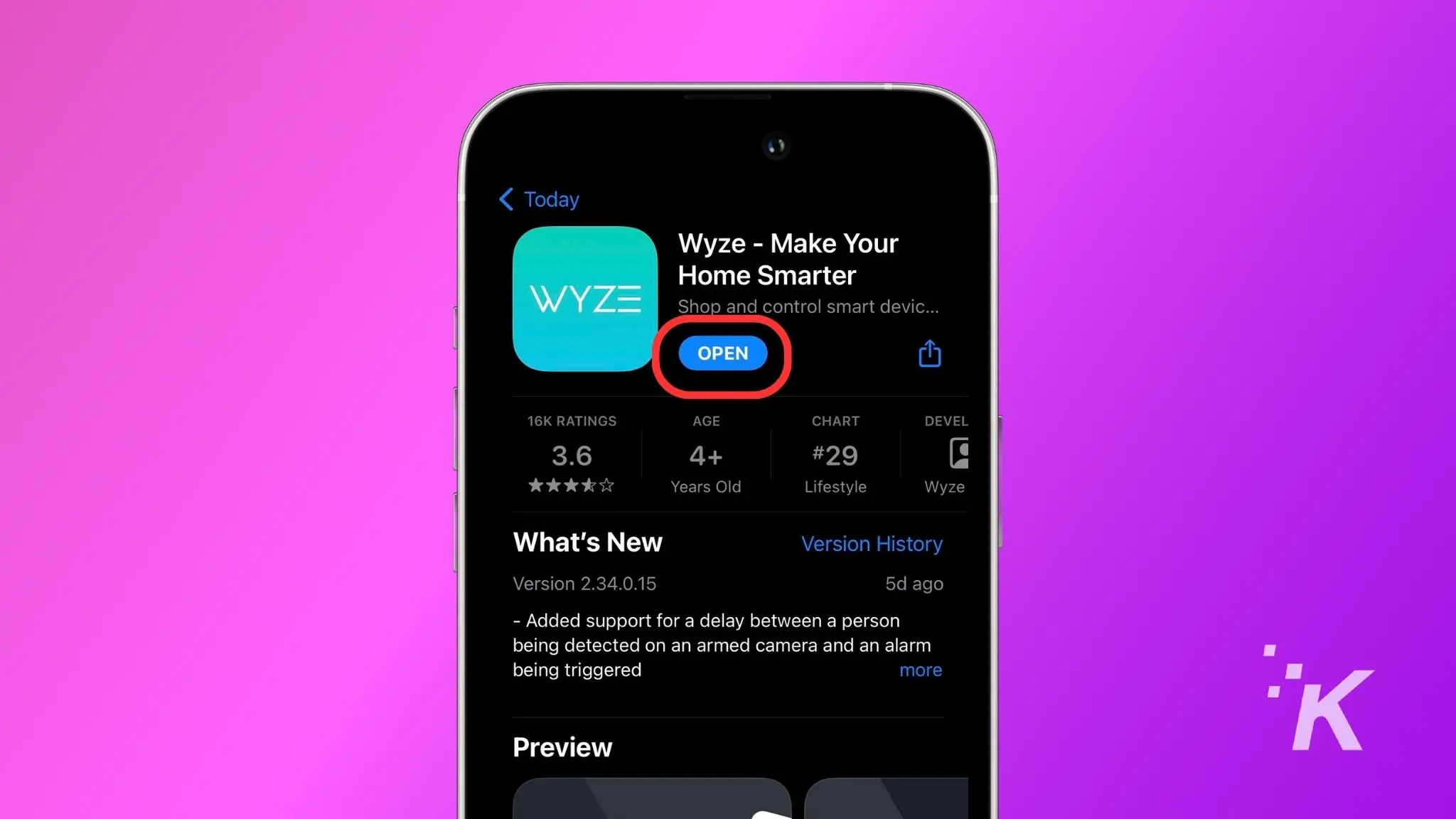
Open the Wyze App.
-
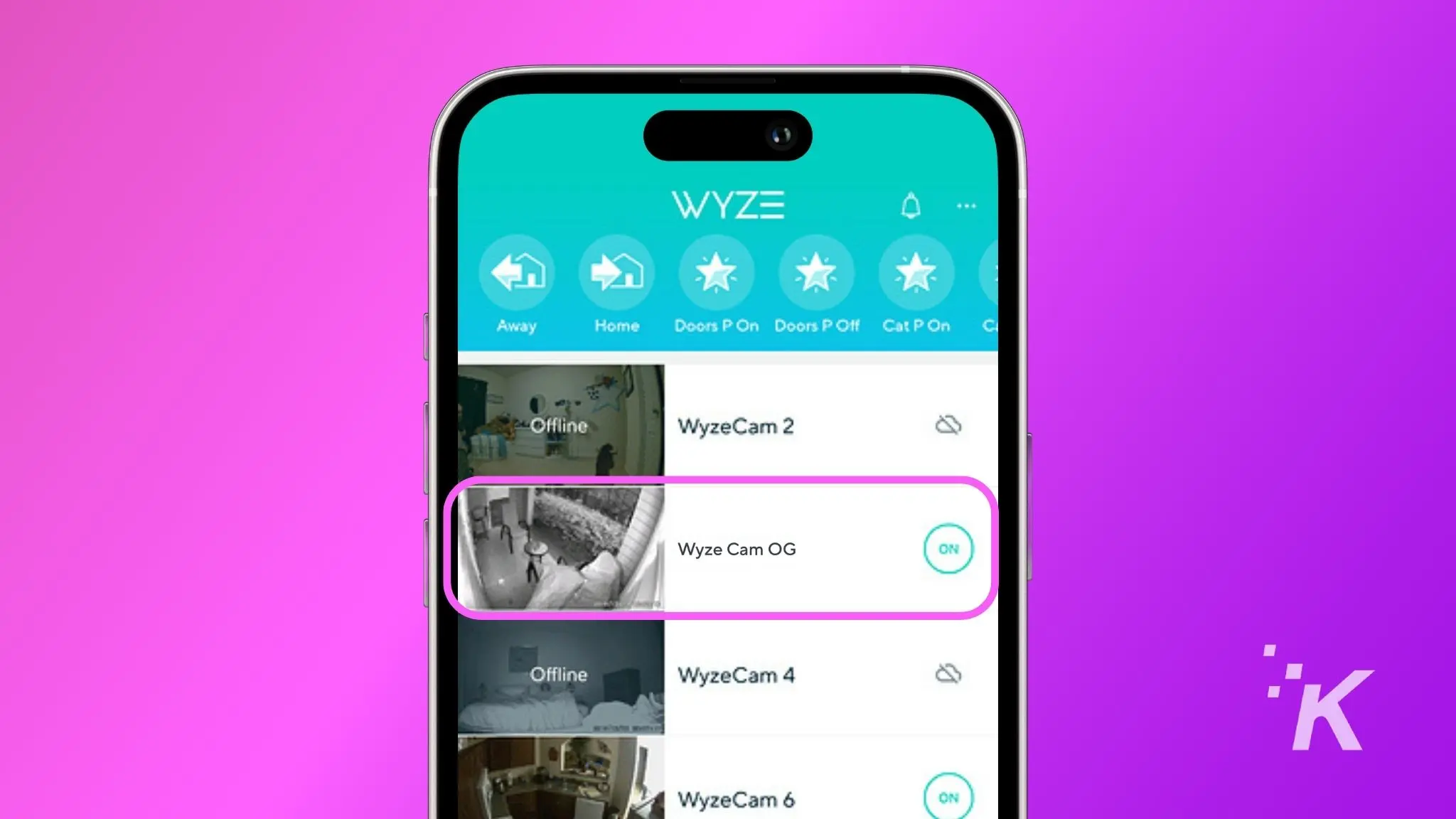
Choose the camera
Tap on the Camera name you want to remove.
-
Open Settings
Tap the gear icon to open settings.
-
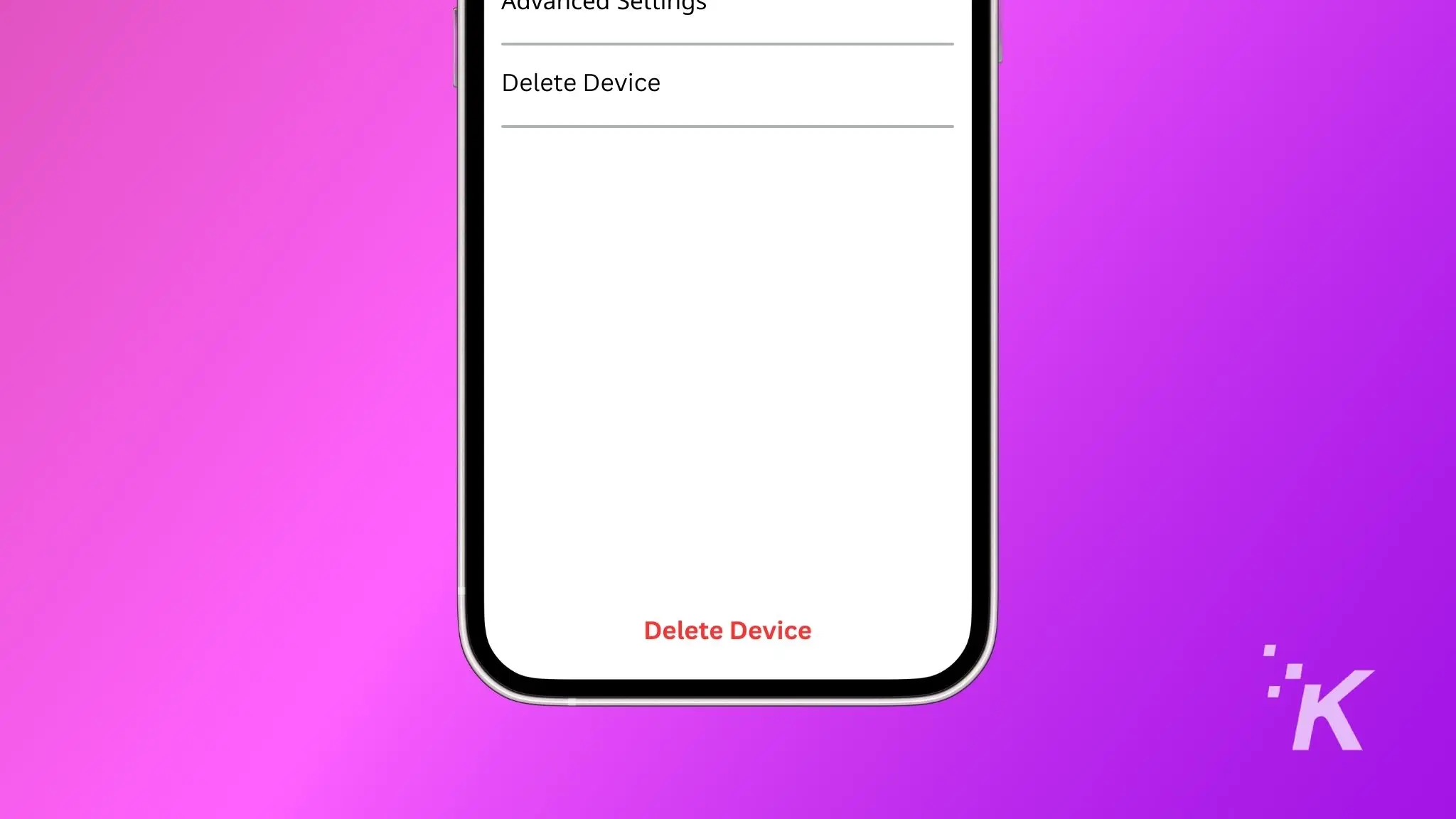
Delete the camera
Scroll down and tap on Delete Device.
-
Tap to confirm
Confirm the deletion.
-
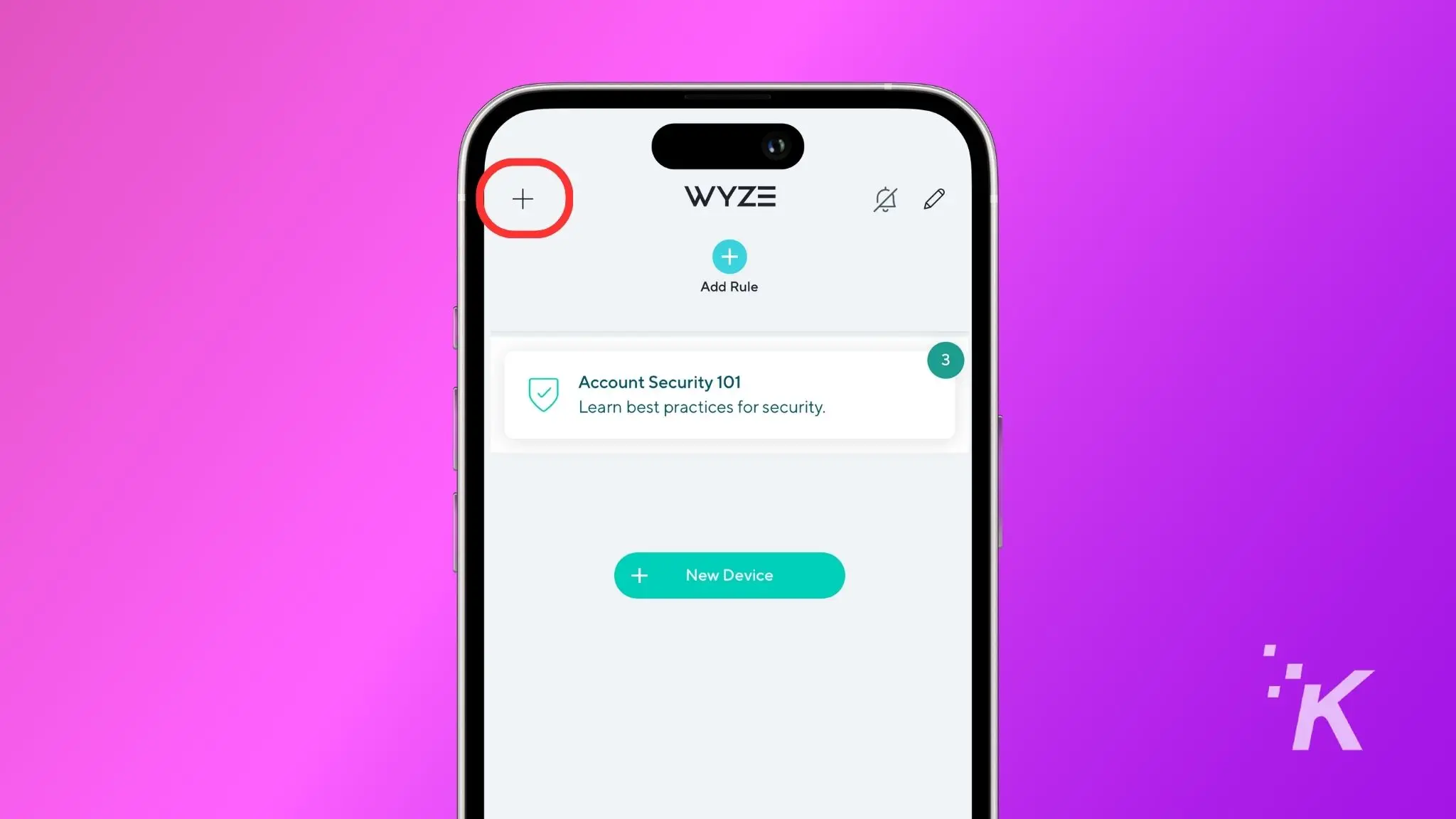
Go back ot the home screen
Go back to the home screen in the Wyze app and tap on the + sign which is located at the top left corner of the screen.
-
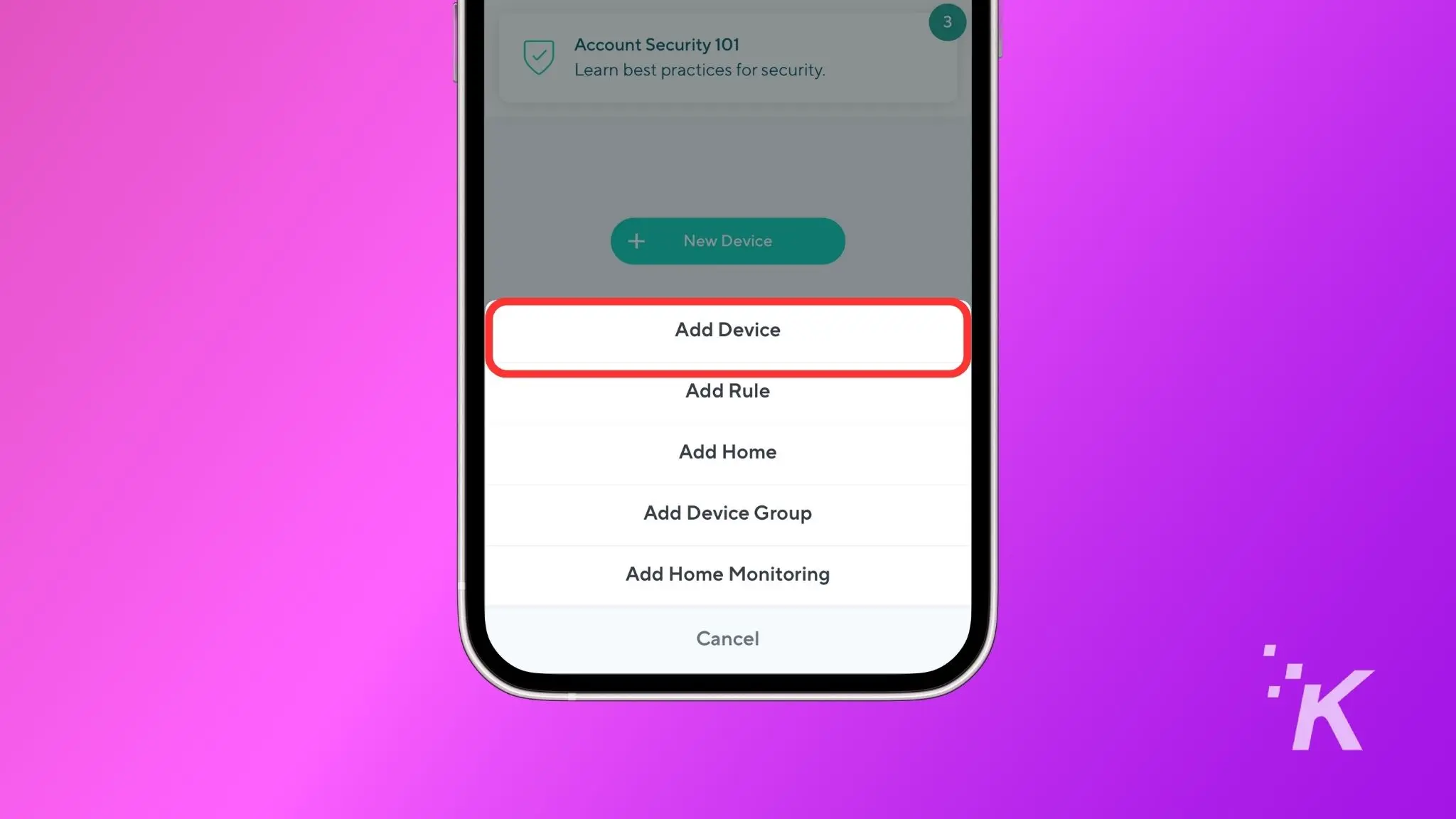
Add the camera
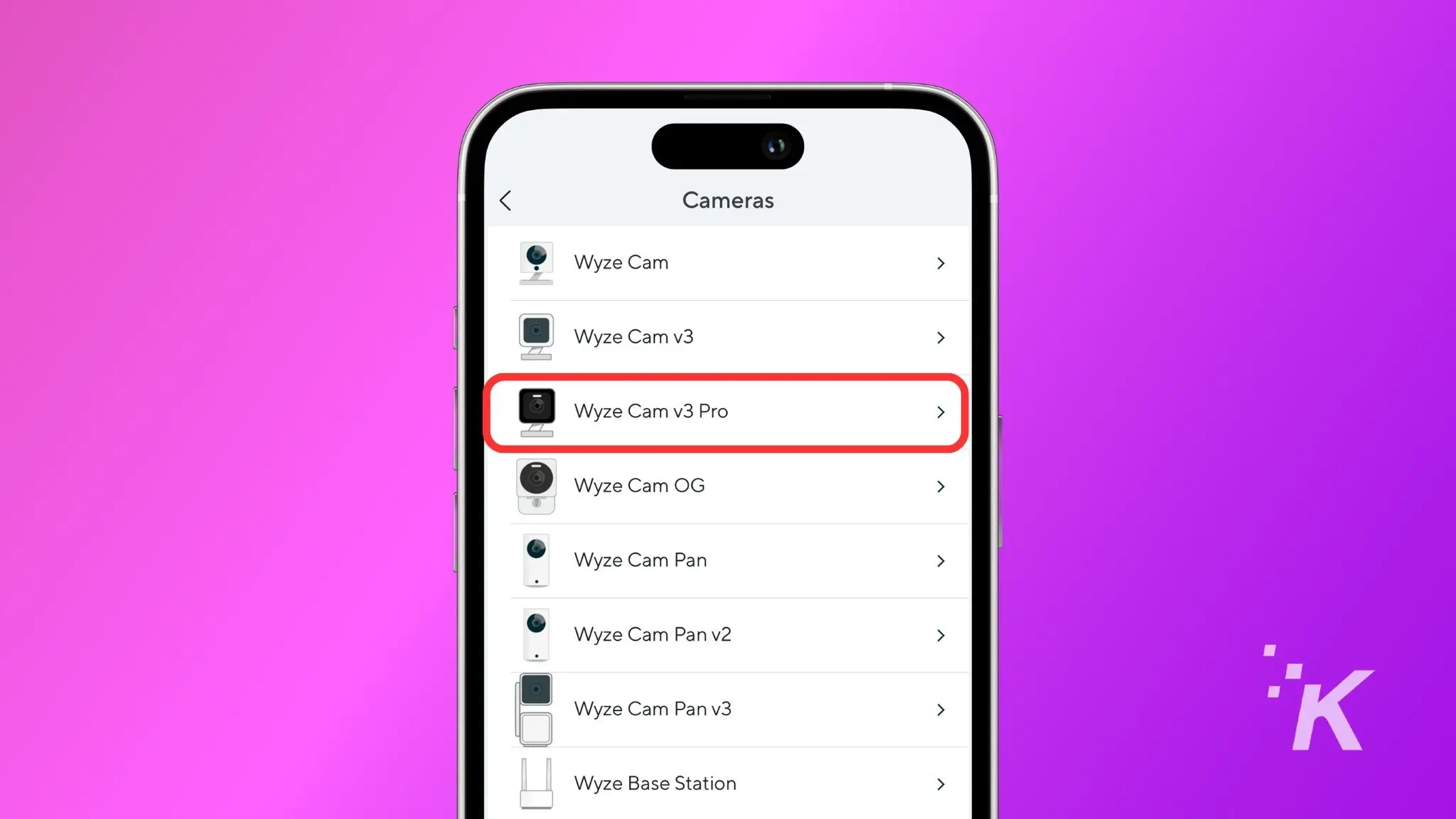
Now select Add Device and then Cameras.
-
Select the camera
Select your Wyze camera from the list and next follow the on-screen instructions to find and press the setup button.
-
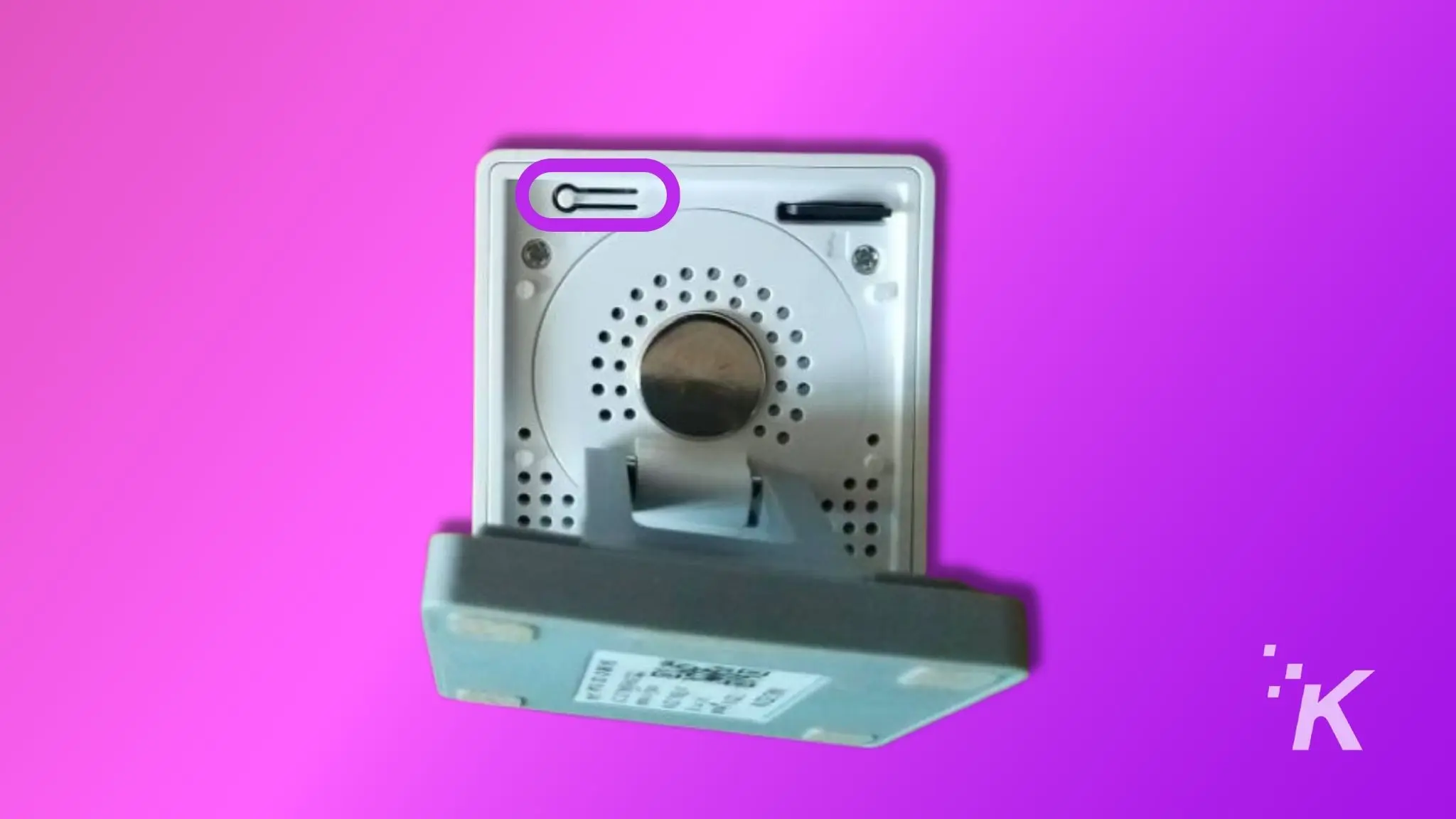
Press the reset button
Now, press the setup button which is usually located at the bottom of your camera.
-
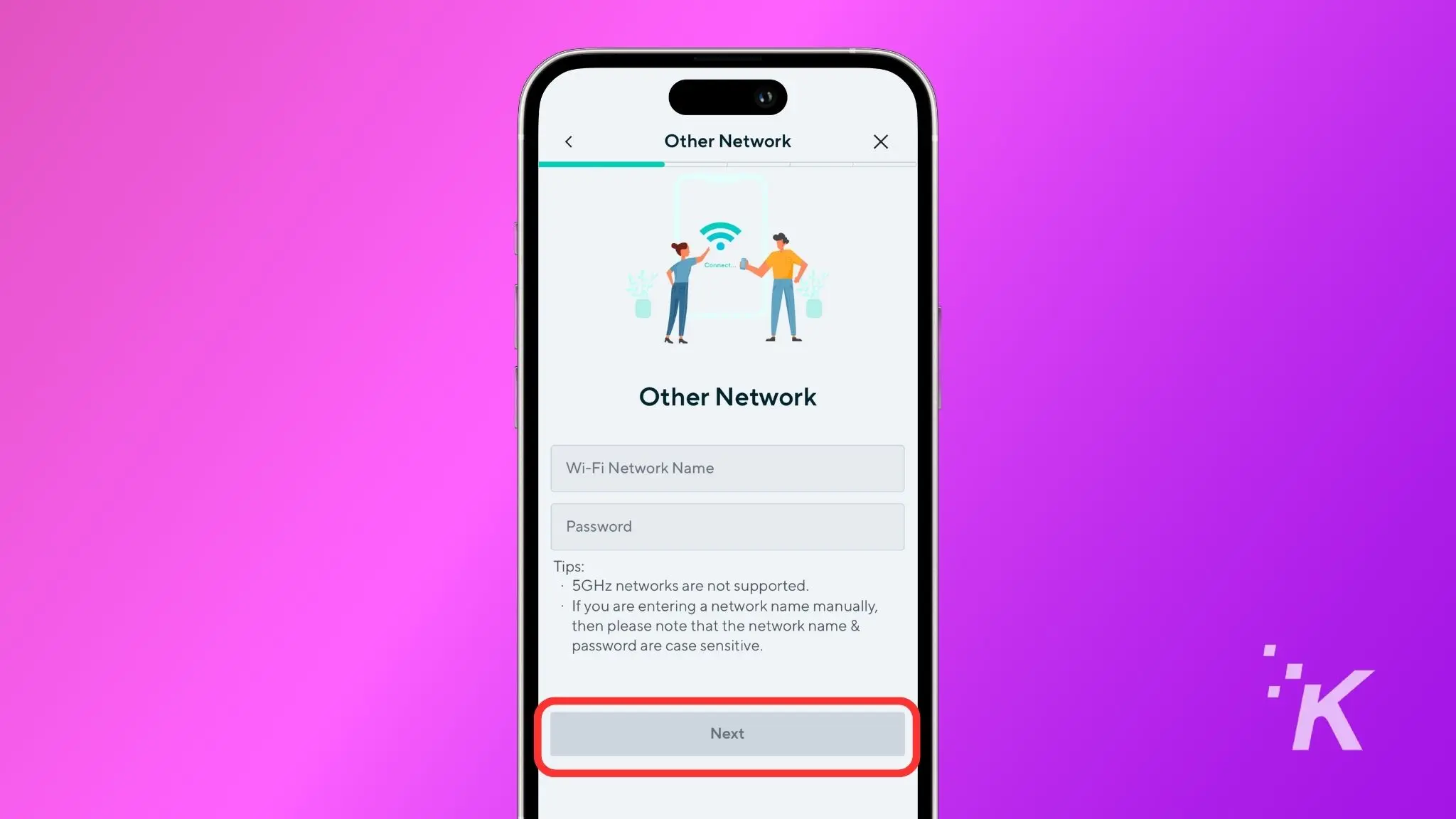
Enter Wi-Fi details
Add the new Wi-Fi credentials into the app.
-
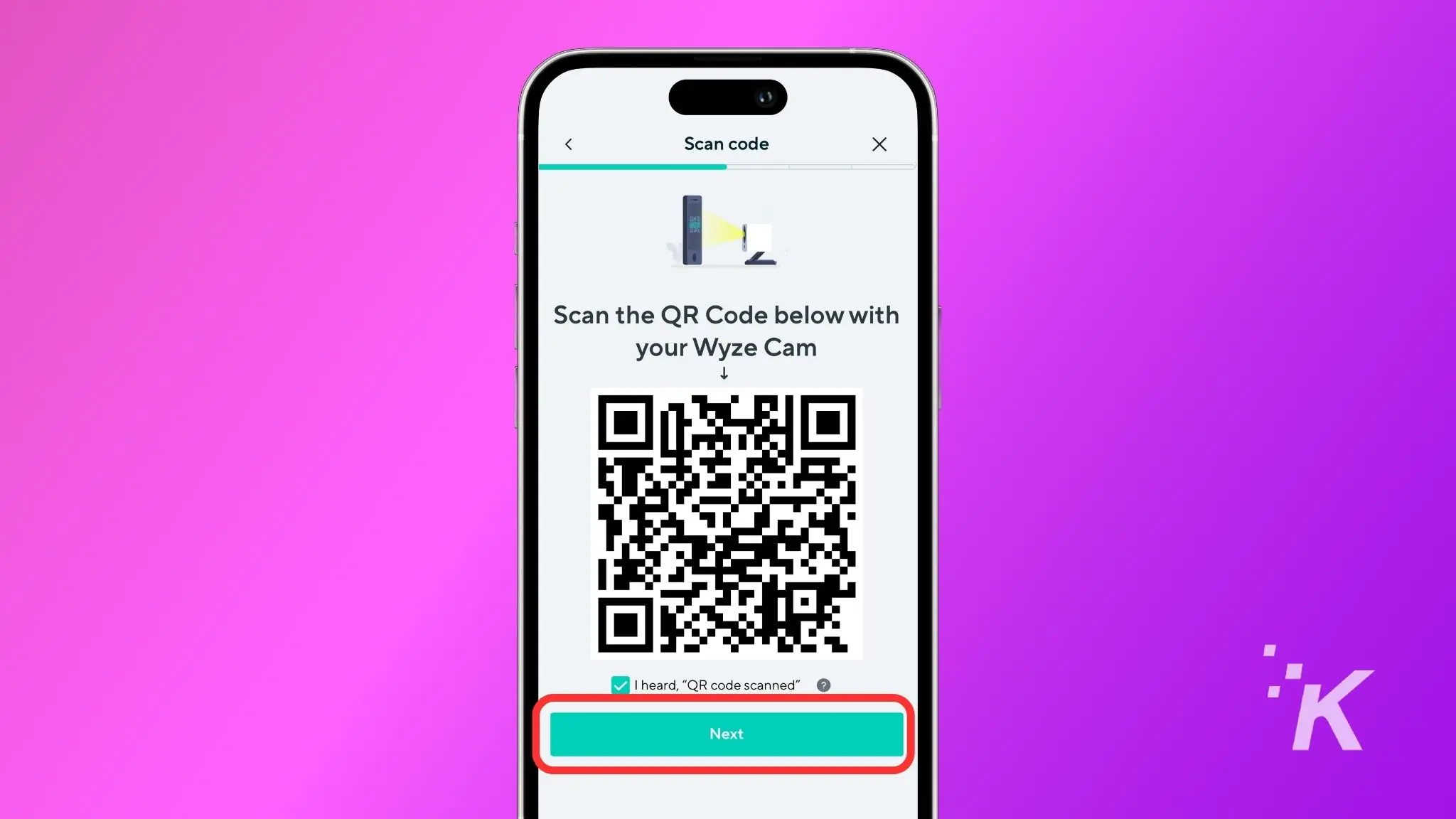
Scan the QR code
Scan the QR Code displayed on the app with the Wyze cam.
-
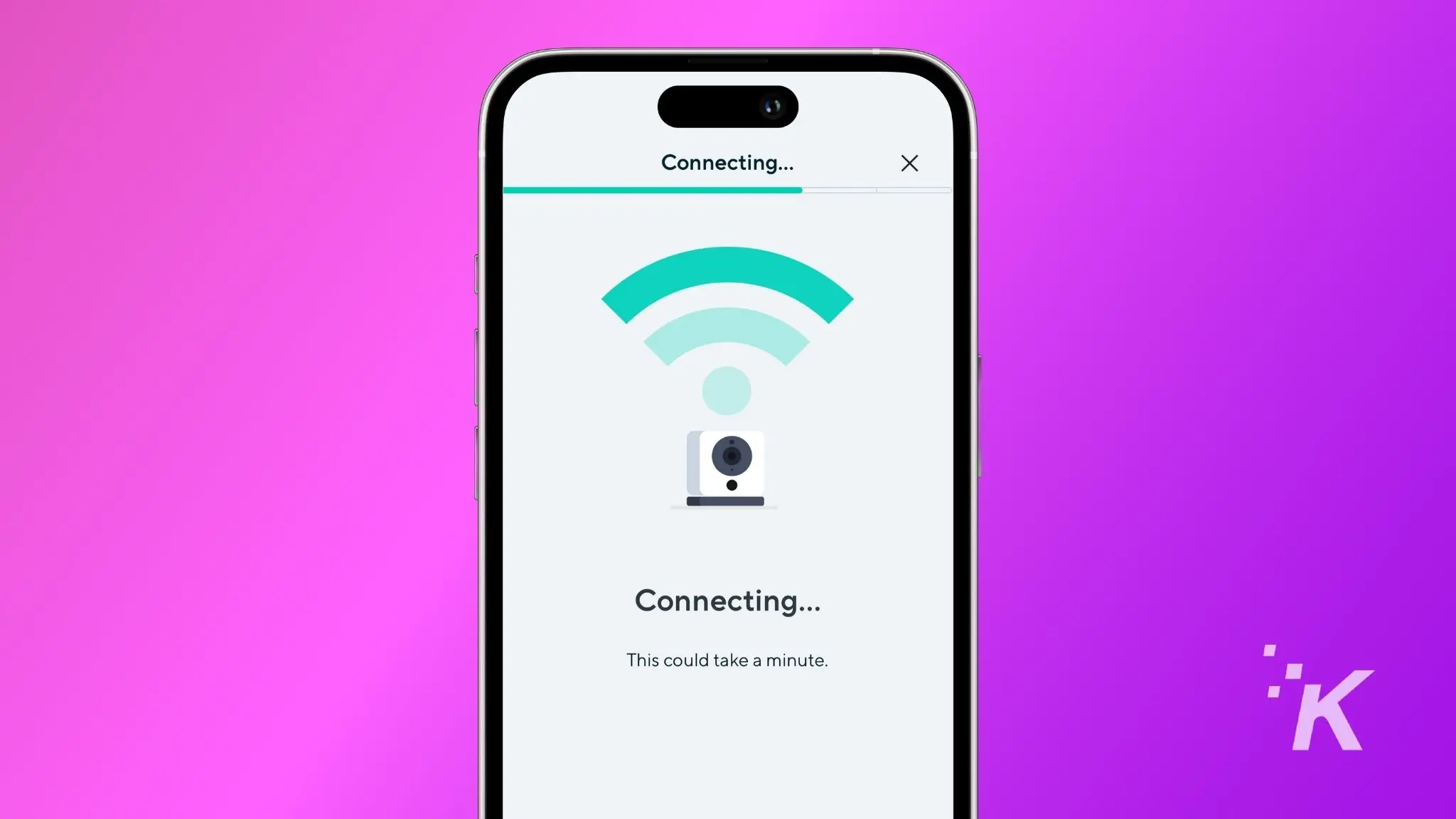
Wait for it to connect
Once the QR Code is scanned, your Wyze camera will take a few minutes to connect to Wi-Fi.

If you encounter issues along the way, consider the following troubleshooting steps:
- Ensure you’re connecting to a 2.4 GHz Wi-Fi network, as Wyze cameras do not support 5 GHz networks.
- Double-check your Wi-Fi network password to ensure it’s entered correctly.
- Ensure your smartphone or tablet is connected to the same Wi-Fi network during the setup process.
- Try factory resetting your Wyze Camera, as it will wipe out all settings on the camera.
It takes time to update your Wyze camera’s network
Changing the Wi-Fi network on your Wyze camera takes a lot of time. That’s because you can’t easily change the Wi-Fi details in the app, you have to physically do it on every camera.
That’s a pain, and the time involved increases with every additional camera you own.
There is a neat workaround to this situation that may or may not work in your case.
Try to configure your new router with the same SSID and password as your old one. This way all your Wyze cams will connect to a new router without any additional setup.
Have any thoughts on this? Drop us a line below in the comments, or carry the discussion to our Twitter or Facebook.
Editors’ Recommendations:
- How to power cycle a Wyze camera?
- How to view Wyze Cam on a smart TV?
- How to fix Wyze error code 90?
- How to factory reset a Wyze Camera before selling it
Follow us on Flipboard, Google News, or Apple News




Buying Guide
The best Antivirus software (2024)


Buying Guide
The best pet tech (2024)

Buying Guide
The best wireless earbuds (2024)